




How do I add ADB command shortcuts?
1.Right-click the small screen and locate the [ADB commands] option in the context menu.
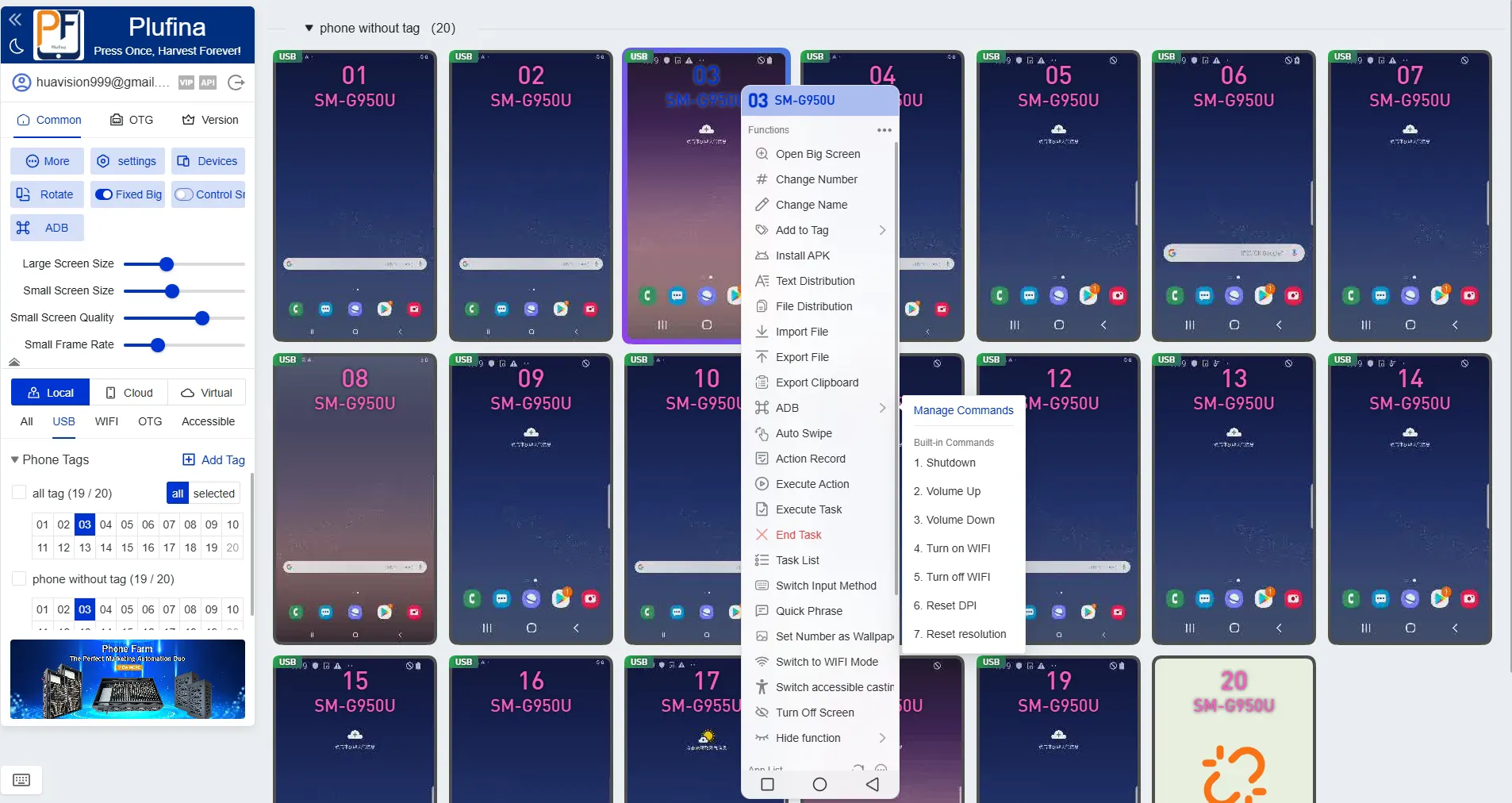
2. Position the mouse cursor over the ADB command button, then click [Manage Commands]
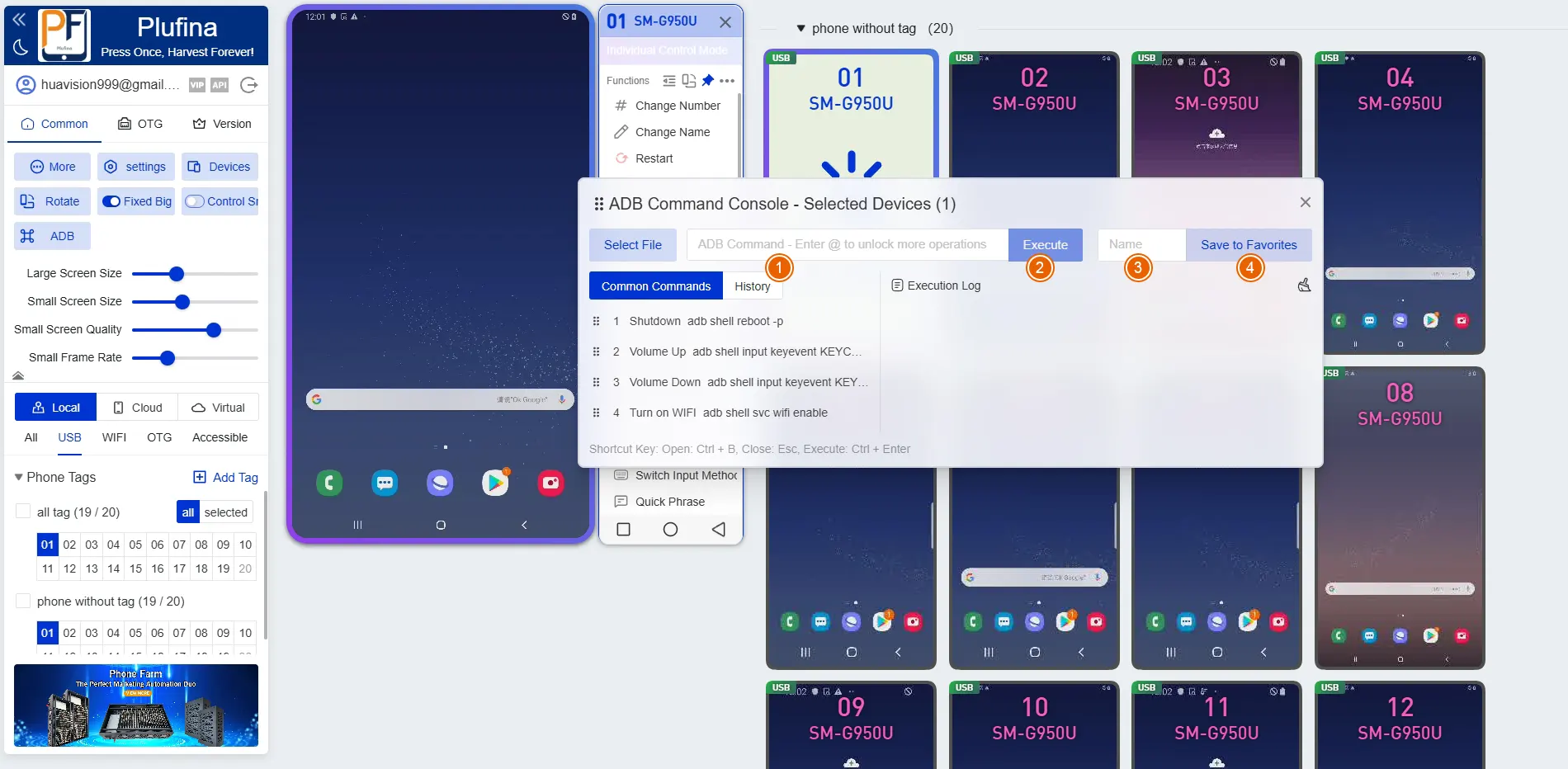
① Indicates entering an ADB command
② indicates direct execution of the ADB command; check the execution log to verify success
③ indicates assigning a name to the ADB command
④ indicates saving this ADB command as a shortcut; once saved, the name will appear in the ADB command section
Selecting a file allows importing an ADB command script. The file format must be .txt, and each line of text must begin with ADB.
Common ADB Commands
Functional Commands
| Name | Command | Notes |
|---|---|---|
| Reboot | adb reboot | |
| Reboot device into recovery mode | adb reboot recovery | |
| Reboot device into bootloader mode | adb reboot bootloader | |
| Power off | adb shell reboot -p | |
| Reset device DPI | adb shell wm density reset | |
| Change device DPI | adb shell wm density 320 | 320 (custom DPI) |
| Check device DPI | adb shell wm density | |
| Reset device resolution | adb shell wm size reset | |
| Change device resolution | adb shell wm size 1080×1920 | 1080×1920 (custom resolution) |
| Check device resolution | adb shell wm size | |
| Check device serial number | adb get-serialno | |
| List device details | adb devices -l | |
| List third-party app package names | adb shell pm list packages -3 | |
| List all system app package names | adb shell pm list packages -s | |
| List all app package names | adb shell pm list packages | |
| Check memory usage | adb shell dumpsys meminfo | |
| Clear app data and cache (requires package name) | adb shell pm clear cn.com.test.mobile | cn.com.test.mobile (custom package name) |
| Uninstall app (requires package name) | adb uninstall cn.com.test.mobile | cn.com.test.mobile (custom package name) |
| Uninstall app but keep data (requires package name) | adb uninstall -k cn.com.test.mobile | cn.com.test.mobile (custom package name) |
| Force stop app | adb shell am force-stop cn.com.test.mobile | cn.com.test.mobile (custom package name) |
| Take a screenshot | adb shell screencap -p /sdcard/01.png | 01.png (custom screenshot name) |
| Install APK | adb install d:/temp/1.apk | d:/temp/1.apk (absolute path to APK) |
| Set battery level | adb shell dumpsys battery set level 100 | 100 (custom battery percentage) |
| Launch app | adb shell am start -n cn.com.test.mobile/.ui.SplashActivity | cn.com.test.mobile (package name).ui.SplashActivity |
| Check Android OS version | adb shell getprop ro.build.version.release | |
| Show top 10 memory-consuming apps | adb shell top -s 10 | |
| Check device brand | adb shell getprop ro.product.brand | |
| Turn on Wi-Fi | adb shell svc wifi enable | |
| Turn off Wi-Fi | adb shell svc wifi disable | |
| Enable pointer location | adb shell settings put system pointer_location 1 | |
| Disable pointer location | adb shell settings put system pointer_location 0 | |
| Simulate tap | adb shell input tap X Y | |
| Disable system updates | adb shell pm disable-user com.wssyncmldm | |
| Keep screen on when black | adb shell settings put system screen_off_timeout 2147483647 | Run once after reboot (execute when screen is not black) |
Key Functions
| Name | Command | Notes |
|---|---|---|
| Power key | adb shell input keyevent 26 | |
| Menu key | adb shell input keyevent 82 | |
| HOME key | adb shell input keyevent 3 | |
| Back key | adb shell input keyevent 4 | |
| Volume up | adb shell input keyevent 24 | |
| Volume down | adb shell input keyevent 25 | |
| Mute | adb shell input keyevent 164 | |
| Play / Pause | adb shell input keyevent 85 | |
| Stop playback | adb shell input keyevent 86 | |
| Next track | adb shell input keyevent 87 | |
| Previous track | adb shell input keyevent 88 | |
| Resume playback | adb shell input keyevent 126 | |
| Pause playback | adb shell input keyevent 127 | |
| Turn screen on | adb shell input keyevent 224 | |
| Turn screen off | adb shell input keyevent 223 | |
| Swipe to unlock (upward swipe gesture) | adb shell input swipe 300 1000 300 500 | The parameters 300 1000 300 500 represent: start point x, start point y, end point x, end point y |
| Input text when a text box is focused | adb shell input text hello |
Xiaomi MIUI ADB Optimisation Commands
| Name | Command |
|---|---|
| Disable Smart Services | adb shell pm disable-user com.miui.systemAdSolution |
| Disable Xiaomi E-commerce | adb shell pm disable-user com.xiaomi.ab |
| Disable User Feedback | adb shell pm disable-user com.miui.bugreport |
| Disable System Analytics | adb shell pm disable-user com.miui.analytics |
| Remove Splash Screen Ads | adb shell rm -f -r /sdcard/Android/data/com.miui.systemAdSolution/files |
| Prevent Splash Screen Ads from Regenerating | adb shell touch /sdcard/Android/data/com.miui.systemAdSolution/files |
What should I do if the device list shows a disconnected mobile phone?
Reason Analysis:
1. Mobile device has not granted permission for USB connection access
2. Outdated ADB version
3. Loose data cable connection
Resolution:
1. Reconnect the mobile device or toggle the USB debugging switch on/off. When the permission prompt appears on the device, select “Allow”
2. Upgrade the ADB version
3. Replace the data cable and retest
How to merge ADB authorisation files?
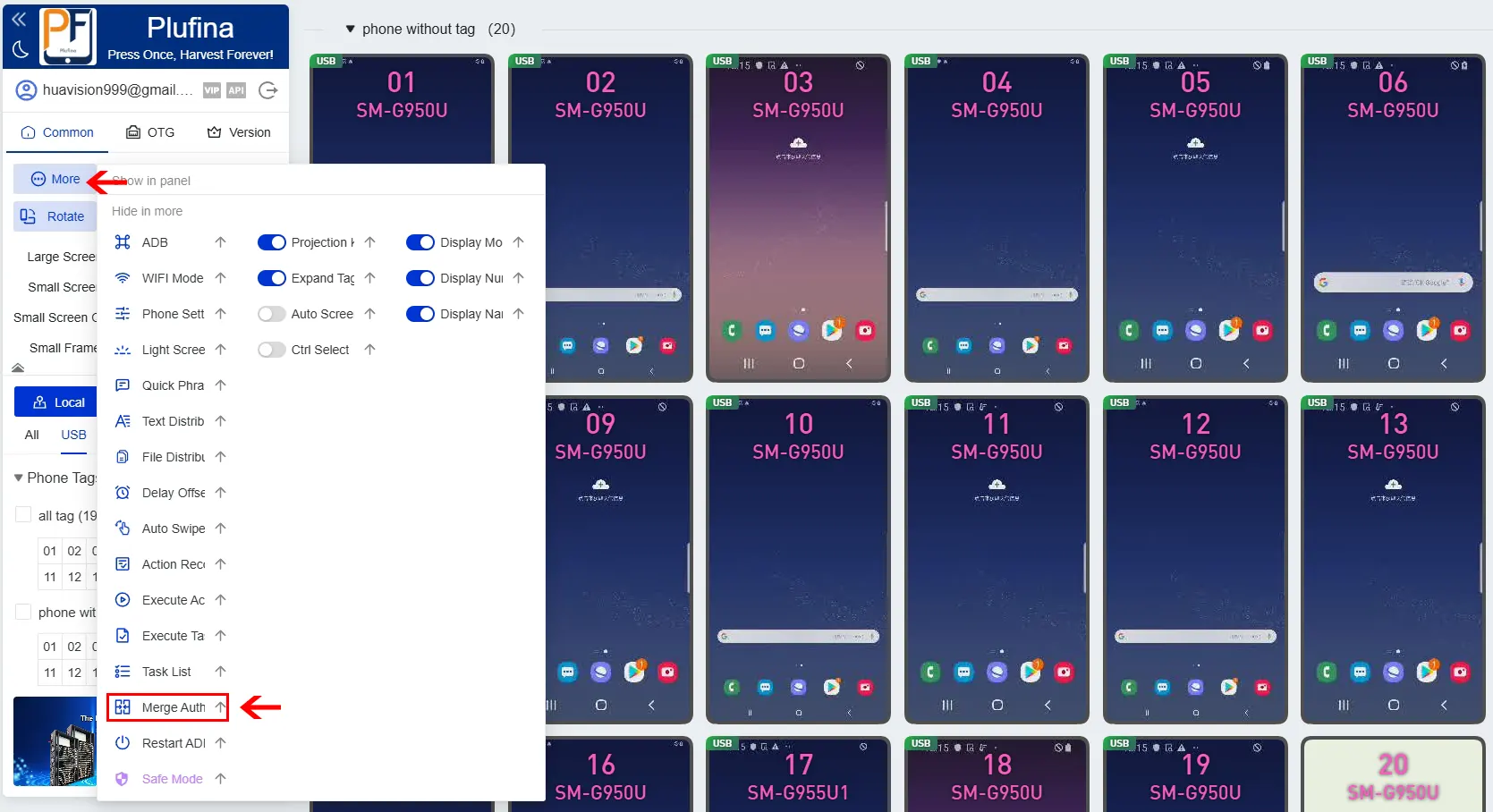
1.Locate [Additional Features] in the Control Panel.
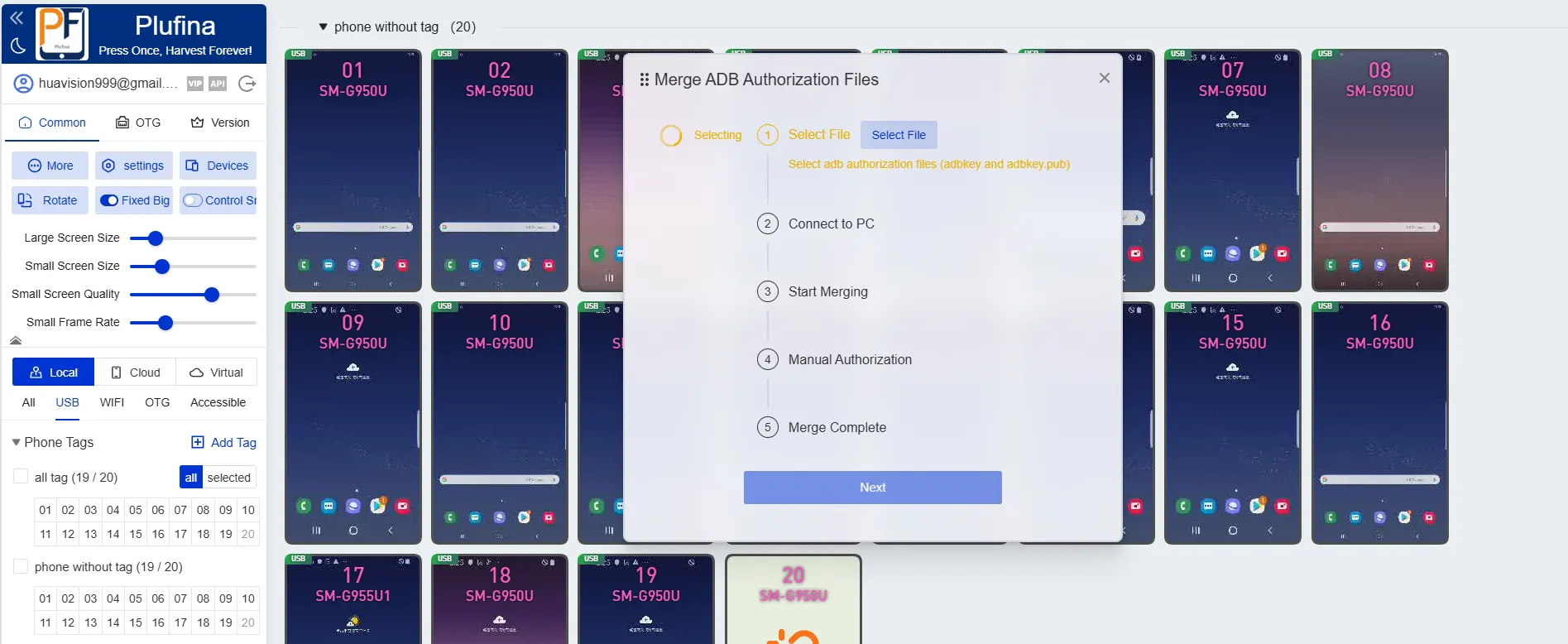
2. First, select the new authorisation files adbkey and adbkey.pub, then click OK. Do not select the two authorisation files located in C:\Users\Administrator\.android.
3. Second, connect the unauthorised master device to the computer.
4. Third, the programme will merge the authorisation files for you. Once merged, it will automatically proceed to step three.
5. Step Four requires you to manually click the authorisation boxes within the phone window of the screen-casting software. After selecting “Allow” for all prompts, click the “I have authorised everything” button.
6. The programme will complete the final merge. Click “Finish” to conclude.
7. The original authorisation files will be backed up for you into the “backup” folder within the XiaoWei installation directory.
What should I do if the device list shows unauthorised devices?
Reason Analysis:
1. Authorisation file is missing
2. Mobile screen authorisation has not been granted
Solution:
1. Obtain the authorisation file from the mainboard vendor. Place the authorisation file in the directory C:\Users\Admin\.android on the computer and restart the system.
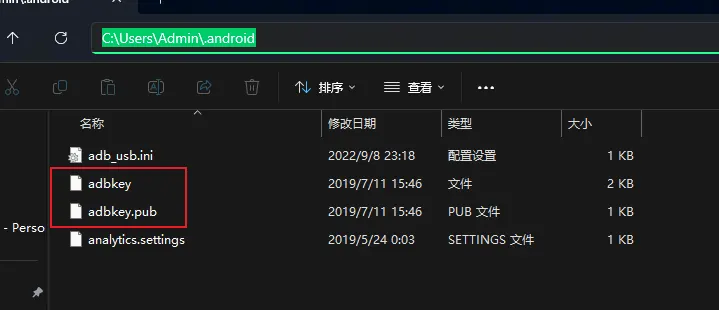
2. Reinsert the USB cable. When the authorisation prompt appears on your phone, simply tap “Allow”.
3. Should the device fail to be recognised, try a different cable or USB port; in rare instances, the phone’s port may be faulty.
4. If prompted with an ADB driver issue, first exit XiaoWei Screen Mirroring. Download and install 360 Mobile Assistant on your computer, then use it to connect the device. This will automatically install the necessary drivers upon successful connection. Once connected, exit (and it is recommended to uninstall) 360 Mobile Assistant. Then restart XiaoWei.
What should I do if the authorisation merge fails?
Reason Analysis:
1. Connection via OTG or Wi-Fi mode
2. Incorrect authorisation file
3. Computer permission restrictions
Solution:
1. Merging authorisations requires USB connection mode; switch connection mode
2. Obtain the correct authorisation file from the mainboard vendor
3. Attempt manual authorisation merging. Manual steps:
a. Replace the old authorisation file with the new one, then restart ADB (back up the old file)
b. Replace the new file with the old one, restart ADB, then tap the on-screen authorisation prompt
c. Replace the new file with the old one again, restart ADB, then tap the authorisation prompt

Cell Phone Farm System: N8+ High-Capacity Box for Continuous Operations
• 20 Nodes: Snapdragon 835, 6+64GB
• Enhanced RAM for Multi-Tasking
• Stable Operation for Continuous Workflows
• Advanced Batch Control